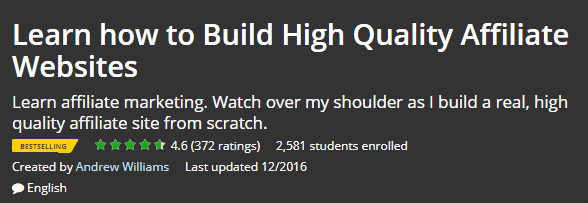
Mr. Williams demonstrates downloading and activating the Customizr Pro Theme in the course. However, some students prefer to test the free or, as the instructor called it, the demo version of Customizer* until they have reason to purchase the Pro version.
To help those starting out with the free Customizr theme, one way to install Customizr under a WordPress Multisite configuration is shown below.
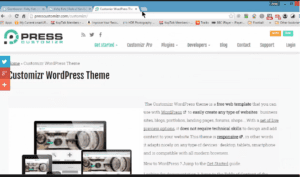
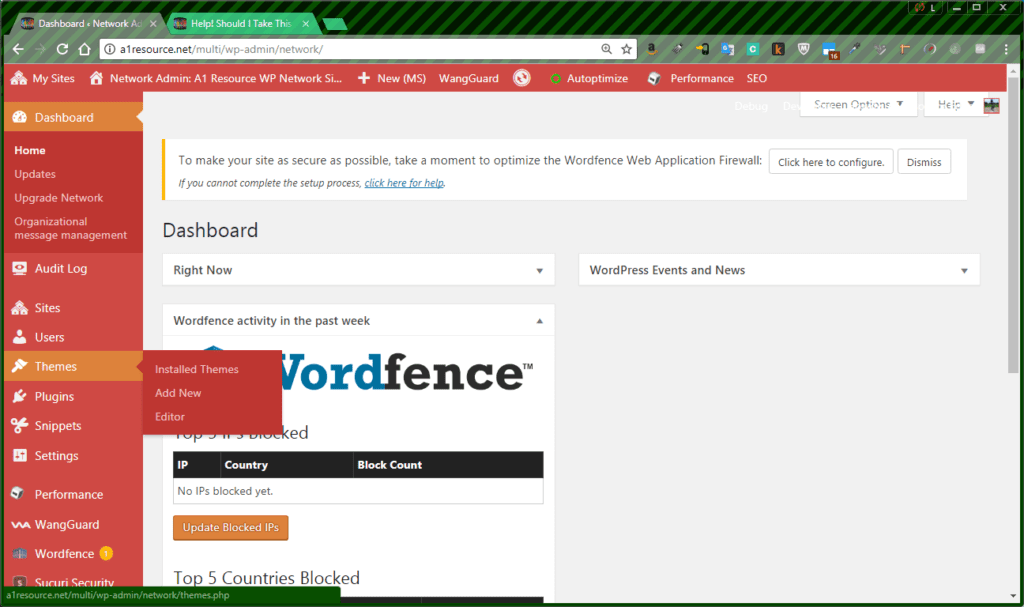
In a Multisite environment, from the top Network Admin level, select “Themes | Add New”.
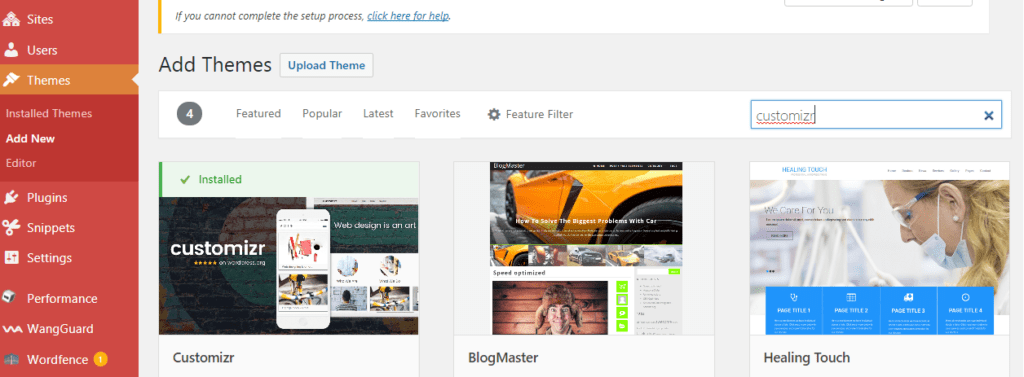
Search for Customizr, preview it, and then click install.
Description of Customizr Theme as seen In Network Admin top level under Appearance | Themes (after Network Activation).
| Customizr
Network Disable | Edit |
Customizr is a versatile and easy to customize WordPress theme, instantly giving a professional look to your online presence. Designed with visitor engagement in mind, it allows anyone to create a beautiful, fast and mobile friendly website compatible with all browsers and devices. Customizr works fine with major WordPress plugins like WooCommerce, bbPress, JetPack and many others. Top rated by hundreds and with a very active community of users and developers, the Customizr theme is a safe and reliable design option to publish your WordPress content.
Version 4.0.5 | By nikeo | Visit Theme Site |
This is used as a parent theme by: Customizr Childify Me |
In a Multisite, navigate to site you are creating to activate Customizr for that site. In my case, it is the bottom listing, Udemy Student’s WordPress MultiSite Portfolio Featuring Andrew Williams’ course “Learn how to Build High Quality Affiliate Websites“”.
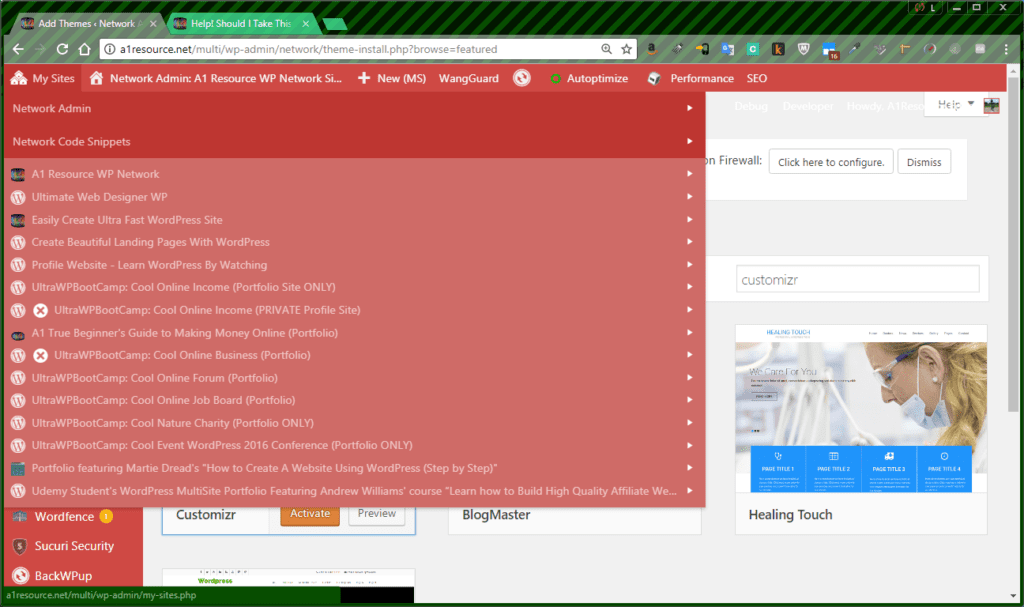
Go to Appearance | Themes.
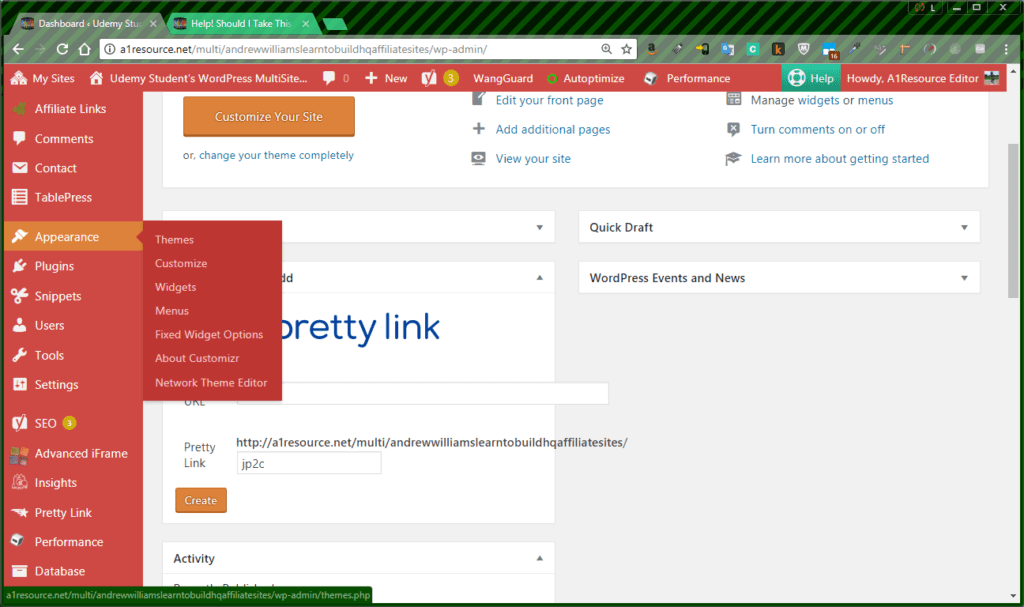
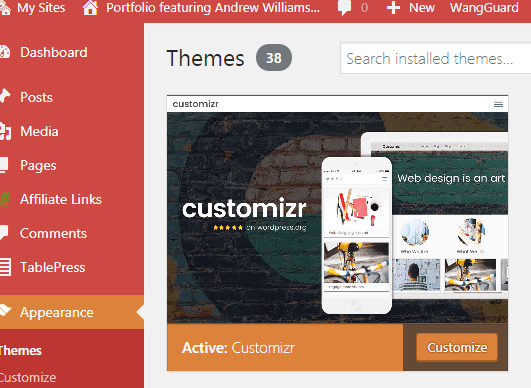
Activate the Customizr Theme.
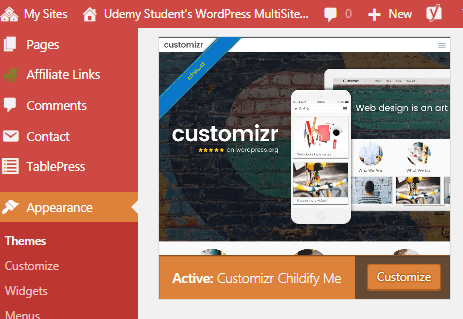
Follow course instructions to install Childify Me Plugin to create a Customizr child.
*Note: If not yet decided on purchasing the Pro version, a comparison of the versions is found at the Press Customizr site: Customizr Free Vs Customizr Pro
Continue the course using the demo Customizr Child. Watch for related posts with tips as course variations occur.